Managing compute resources > Managing virtual machines > Setting a password inside virtual machines
Setting a password inside virtual machines
Instead of an SSH key, you can use a password of the default administrator, to access a virtual machine created from a template.
Setting a password inside virtual machines is supported for both Linux and Windows guest operating systems.
Note
If you do not have this functionality available for a virtual machine, contact your system administrator.
To set a password inside a virtual machine
- On the Virtual machines screen, click the required VM.
- On the VM right pane, click Set password.
- In the Set password window, specify a password for the default administrator login. The password must meet the following complexity requirements:
- It must be at least 12 characters long.
- It must contain characters from all of the following categories:
- Uppercase Latin letters
- Lowercase Latin letters
- Base 10 digits (0 through 9)
- Non-alphanumeric characters (special characters)
Important
Save this password. After closing this window, the password will be hidden and unavailable for recovery.
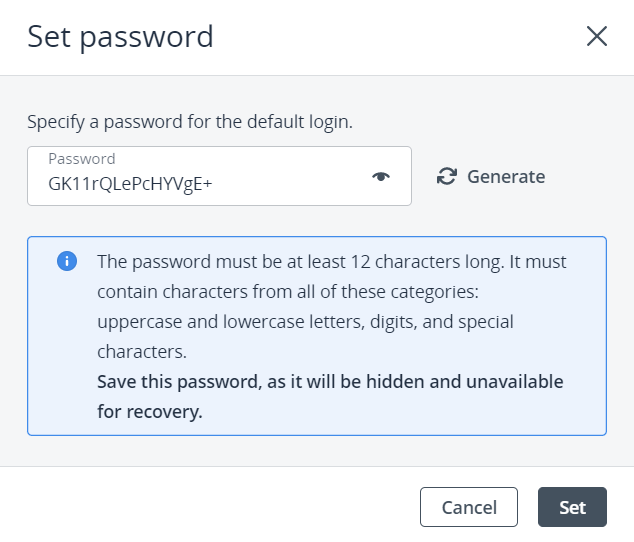
4. Click Set to set the specified password for the default administrator account inside the VM.
Once the password is injected inside the virtual machine, you can use it to log in to the guest operating system with the default admin login. The Default admin login is displayed on the VM right pane in the VM properties.